



08 Jul Interactive Whiteboard for Conference Room Practical Guide
Interactive Whiteboard for Conference Room: A Practical Guide to Better Hybrid Meetings
Estimated reading time: 12 minutes
Last Reviewed: June 27, 2026

By Luis Garcia, CIO
Luis Garcia is CIO at On-Site Technology, a Clifton, NJ-based MSP serving NJ, NY, PA, and FL since 2001. On-Site Technology is a Microsoft Certified Partner, Cisco Select Partner, VMware Partner, and Veeam Partner. Luis started as an IT field tech in 2001 and has spent over two decades working through every layer of the trade, including break/fix, network engineering, managed security, and CMMC compliance, which is why his advice leans specific over theoretical.
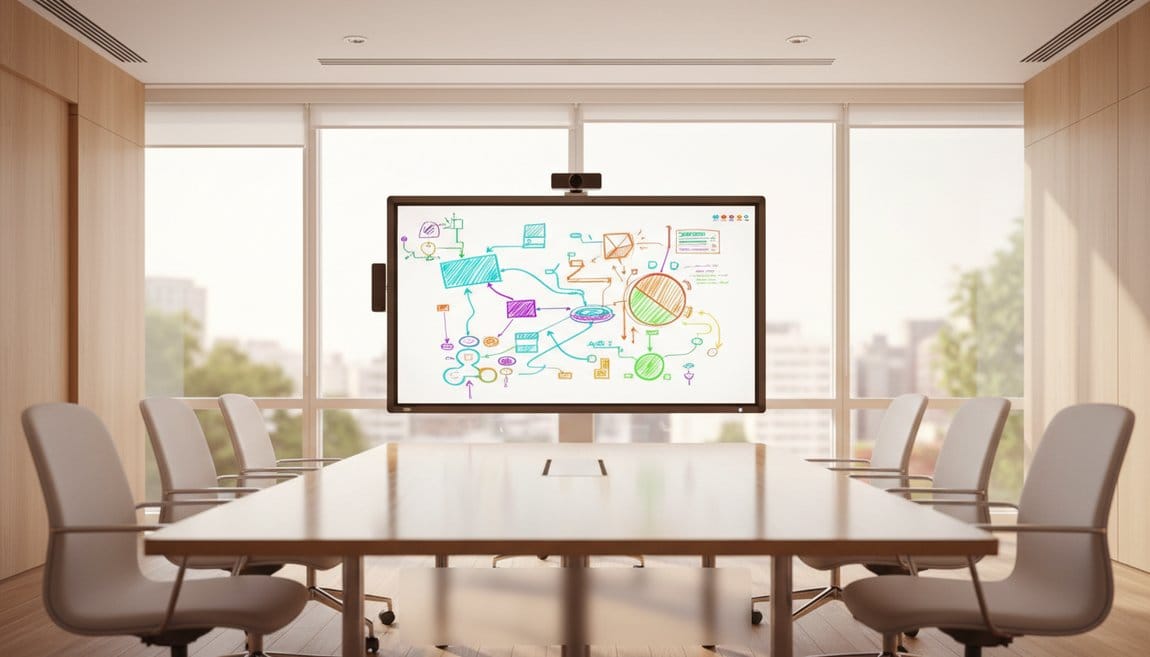
An interactive whiteboard for conference room is a large, touch-enabled digital display that replaces projectors and static whiteboards, combining presentation, annotation, and real-time collaboration for both in-room and remote participants. On-Site Technology helps organizations across NJ, NY, PA, and FL deploy these systems, with typical interactive flat panel solutions ranging from $3,000 to $12,000 per room depending on screen size, platform certification, and AV complexity.
Key Takeaways
- An interactive whiteboard for conference room replaces projectors and static boards with a single 4K touch surface that handles presentations, annotations, and cloud-synced collaboration for hybrid teams.
- Interactive flat panels deliver lower total cost of ownership, fewer failure points, and native Teams Rooms or Zoom Rooms certification compared to legacy projector-based setups.
- AV planning, network segmentation, and user adoption are as critical as the display hardware for hybrid meetings to deliver real value.
- Training rooms need multi-touch and cloud persistence, while executive spaces demand premium aesthetics, security, and reliability.
- Use the 6-Point Conference Room Readiness Checklist before purchasing to align room type, platform, network, identity, support, and change management.
Table of Contents
- Introduction: Why Conference Rooms Are Getting Smarter
- From Whiteboard to Collaboration Hub
- Interactive Flat Panels, Teams Rooms, and Zoom Rooms
- Designing Hybrid-Ready Spaces
- Specialized Use Cases
- Buying and Implementation Guide
- Conclusion
- Frequently Asked Questions
Introduction: Why Conference Rooms Are Getting Smarter
Definition
Interactive whiteboard for conference room — A large, touch-enabled digital display that replaces traditional projectors and static whiteboards, combining presentation, real-time annotation, and cloud-connected collaboration tools so in-room and remote participants work on the same digital surface simultaneously, typically deployed as a 65″ to 86″ panel certified for Microsoft Teams Rooms or Zoom Rooms.
Organizations across Northern NJ, the NYC metro, and South Florida are pulling projectors off the ceiling and replacing projectors with conference room interactive displays because the old setup simply can not support the way teams work now. Half the meeting is remote. Decisions need to be captured immediately. Annotations on a dry-erase board do not survive the walk back to someone's desk.
This guide walks through what interactive whiteboards actually do in a modern meeting room, how to choose between interactive flat panels and legacy systems, how Microsoft Teams Rooms and Zoom Rooms fit into the picture, what it takes to design a hybrid-ready space, and a practical buying and implementation checklist from an IT integrator's perspective. By the end you will have a framework to make a confident room-by-room decision.
From Whiteboard to Collaboration Hub: What an Interactive Whiteboard for Conference Room Really Does
“Your conference room display is no longer a screen; it’s your collaboration operating system.”
The shift sounds obvious until you watch a team try to run a hybrid sprint review on a 10-year-old projector. The remote participants can not see what is written. The presenter’s laptop freezes during screen share. Someone takes a blurry phone photo of the whiteboard at the end and emails it to the group. That is the old world. The interactive whiteboard for conference room eliminates all three of those failure points in a single device.
Core Capabilities of a Modern Conference Room Interactive Display
A conference room interactive display is a large-format touchscreen that replaces the projector-plus-passive-screen combination with an all-in-one digital surface for viewing, touch input, digital whiteboarding, and often integrated audio and video. No bulbs to replace, no focus ring to fiddle with, no separate whiteboard that captures nothing digitally.
The contrast with traditional setups is meaningful on every practical dimension. Projectors degrade over time, require periodic calibration, and cast shadows when someone stands in front of them. Interactive flat panels turn on instantly, maintain consistent brightness across a 50,000-plus-hour lifespan, and let multiple people write simultaneously without fighting over a single marker.
A modern conference room interactive display typically handles four things in one session:
- Shows presentations, video, and browser content at 4K UHD resolution.
- Supports real-time annotation directly on top of any running application.
- Allows multi-user touch input from 10 or more simultaneous contact points.
- Saves whiteboards and annotated files directly to cloud storage, Microsoft Teams channels, or Zoom Whiteboard.
Hardware categories worth knowing: all-in-one interactive flat panels with embedded computing, interactive displays paired with a dedicated room PC, and certified systems built for Microsoft Teams Rooms or Zoom Rooms. Each has a different IT management profile, which I will cover in the buying section.
How Interactive Whiteboards Change Meeting Dynamics
The before picture is familiar. One presenter drives the slide deck. Remote participants watch a screen share, muted unless called on. The whiteboard in the corner gets used once, never photographed, and erased by the next group. Decisions are reconstructed from memory in a follow-up email two days later.
The after picture runs differently. The shared digital canvas is live from minute one. An engineer at the table circles a bottleneck in a process diagram. A remote participant on Teams drops a sticky note suggesting an alternative. A manager annotates a budget slide directly on the number that needs to change. At the end of the meeting, that annotated file is already in the Teams channel.
The impact on decision-making is concrete. When decisions are marked directly on content and saved automatically, the cycle of “wait, what did we agree to?” drops sharply. Reduced follow-up email volume is a consistent benefit I hear from clients after deployment, because the annotated board and meeting notes live in one place, not scattered across three people's inboxes.
Different meeting types benefit in different ways. Strategy sessions and executive reviews gain from the ability to annotate dashboards live. Daily standups move faster when blockers can be flagged visually. Brainstorming sessions get more equitable participation because remote contributors are not limited to the chat sidebar.
Matching Display Type to Room Type (Room-First Framework)
Most organizations make the mistake of evaluating interactive whiteboards in isolation, comparing spec sheets before they have defined the room. Start with the room. The display choice follows.
Four room profiles cover most deployments:
- Huddle room (2 to 4 people): A 55″ to 65″ all-in-one interactive flat panel for meeting room is sufficient. Simple camera-mic bar, basic wireless casting. Complexity is low; budget is manageable.
- Standard conference room (6 to 10 people): Step up to a 65″ to 75″ display. This is where Microsoft Teams Rooms with interactive whiteboard or a Zoom Rooms interactive display makes the most operational sense, because meetings at this scale are almost always hybrid.
- Large boardroom or executive conference room: 75″ and above, often 86″. Premium industrial design, tracking camera, multi-mic coverage across a long table, and tighter security requirements for the interactive whiteboard for boardroom context.
- Training room: Larger display or multiple interactive whiteboards for corporate training spaced for sightlines. Strong remote access matters here because hybrid training cohorts are increasingly common.
Viewing distance matters. A rough industry guideline is that the optimal viewing distance is roughly 1.5 to 2.5 times the screen diagonal. A 75″ display in a room where the back row sits 15 feet away will be readable; the same display in a 30-foot room will strain participants.
Seating layout also affects touch access. A U-shape configuration keeps most participants within arm’s reach of the interactive surface; a classroom-style layout limits touch interaction to the trainer or presenter at the front.
Interactive Flat Panels, Teams Rooms, and Zoom Rooms: Understanding Your Platform Options
What Is an Interactive Flat Panel for Meeting Room?
Definition
Interactive flat panel for meeting room — An all-in-one smart display that integrates a 4K touchscreen, embedded operating system (typically Android or a custom platform), multi-touch input, built-in speakers, and native whiteboarding and conferencing applications into a single wall-mounted or stand-mounted unit, eliminating the need for a separate projector, PC, and passive screen.
Typical features that matter from an IT perspective include:
- Multi-touch support at 10 or more simultaneous points, enabling multiple people to annotate at the board without conflicting inputs.
- Whiteboarding apps with pen tools, sticky notes, templates, and direct cloud save to Microsoft 365 or Google Workspace.
- Wireless casting via Miracast, AirPlay, or proprietary apps so participants share from laptops without hunting for a cable.
- Integrated authentication hooks for Microsoft Entra ID, which matters for security and content governance.
MSPs and IT teams prefer interactive flat panels over projector-based systems for a specific reason: fewer components means fewer failure points and simpler remote management. One device to monitor, patch, and reboot. I have supported conference rooms with three-component setups where a firmware conflict on the PC took down the entire room for a day. That problem disappears with a flat panel.
Interactive Flat Panel vs. Standalone Interactive Whiteboard
Legacy interactive whiteboards typically require a separate projector with lamps that cost $200 to $400 to replace and degrade in brightness over time, a dedicated PC, regular touch calibration, and cable management that accumulates into a genuine mess inside three years. The consolidated interactive flat panel makes all of that go away, which is why I stopped recommending projector-based hybrid meeting interactive whiteboard setups for new installs around 2020.
Microsoft Teams Rooms with Interactive Whiteboard
Definition
Microsoft Teams Rooms — A dedicated room system that runs the Microsoft Teams application on certified hardware, enabling one-touch meeting join, front-of-room display management, content sharing, and room controls from a dedicated console, all managed through the Teams Rooms Pro Management Portal in Microsoft 365.
There are two main paths to Microsoft Teams Rooms with interactive whiteboard. The first is an interactive display that is itself a Teams Rooms-certified device, meaning the panel runs the Teams Rooms OS natively. The second is an interactive display connected to a separate Teams Rooms compute unit and console. Both work; the all-in-one path is simpler to manage, while the split-compute path gives more flexibility to upgrade the compute independently.
Connection details: HDMI or USB-C for content and touch-back, USB for camera and audio devices, and configuration through the Teams Admin Center so meetings can start from either the room console or the interactive panel itself.
Here is how a typical workflow runs in practice. A project lead schedules a weekly status meeting in Outlook. The invite goes out. On meeting day, the room attendee walks in, taps “Join” on the room console. Teams is live in 10 seconds. The lead opens Microsoft Whiteboard on the panel. Remote participants see the board immediately and can co-ink from their Teams desktop clients. At the end of the 30 minutes, the lead taps “Save” and the board lands directly in the Teams channel for that project. No email. No photo of a dry-erase board. No “Does anyone have the notes from Tuesday?”
Everything stays in Teams. Chat, files, whiteboards, and recordings are all in one place, which simplifies recurring meeting workflows in a way that genuinely sticks with end users.
Zoom Rooms Interactive Display and Zoom Whiteboard
Definition
Zoom Rooms — Zoom’s software-based room system that runs on certified hardware to deliver a dedicated Zoom meeting experience in a physical space, including one-touch join, content sharing, in-room camera and audio control, and the Zoom Whiteboard application for synchronized annotation.
Zoom Rooms for Touch is the specific configuration designed for touch-enabled displays. The interface combines participant video tiles, shared content, and whiteboard access in a single unified view rather than requiring the presenter to switch between windows. That matters more than it sounds when someone is standing at a display trying to run a meeting and annotate at the same time.
Zoom Whiteboard is cloud-based, which means content persists after the meeting ends. Boards can be shared via link, embedded into recurring meeting templates, and accessed from any device before or after the session. For teams that run weekly reviews with consistent agenda items, a persistent board template avoids the “let me recreate the parking lot from last week” problem.
A typical Zoom workflow: book the meeting in Zoom Scheduler, walk into the room, tap “Start” on the display. Open Zoom Whiteboard. Invite remote participants to add ideas via sticky notes. At close, export a PDF or share the board link in the Zoom chat. Done in one step.
One position I will take that competing articles rarely state: organizations should standardize on one primary platform and commit. Running some rooms on Teams Rooms and others on Zoom Rooms creates user confusion, doubles your IT management overhead, and fragments where meeting artifacts get stored. Pick the platform that aligns with your primary productivity suite and build every room around it.
Designing Hybrid-Ready Spaces: Cameras, Audio, and Whiteboarding That Work for Everyone
“Design the room for the person who isn’t in it, and the people who are will be fine.”
Buying a great interactive flat panel and putting it in a poorly designed room is like buying a high-end router and plugging it into a congested network segment. The device is good. The environment defeats it.
Why Hybrid Meeting Interactive Whiteboards Fail Without AV Planning
The three most common failure patterns I see when organizations deploy a hybrid meeting interactive whiteboard without proper AV planning are: remote participants can not read what is being written because the camera angle cuts off the bottom third of the board, audio drops when a presenter turns to face the display and moves away from the mic pickup zone, and glare from windows or overhead fluorescents washes out the screen in afternoon meetings.
None of those failures are display problems. They are room design problems. A hybrid meeting interactive whiteboard is part of an AV system, not a standalone device. The camera, microphones, speakers, room lighting, acoustics, and network connectivity all affect whether the investment delivers.
From an IT perspective, network planning is as critical as the AV layout. Video conferencing at 1080p requires roughly 3 to 4 Mbps per stream. A 10-person meeting with active screen sharing can push 20 to 30 Mbps without QoS policies in place. Segmenting AV devices onto a dedicated VLAN with QoS prioritization for Teams and Zoom traffic is not optional for reliable hybrid meetings. At this point most clients engage an MSP to handle both network and device management in a single scope.
Best Practices for Camera Placement and Audio Integration
Camera placement has one governing principle: put the camera as close to eye level and as close to the interactive display as physically possible. When the camera is above the display looking down, in-room participants appear to be staring at the table from the remote viewer's perspective. That subtle angle degrades the feeling of genuine conversation.
Wide-angle or intelligent framing cameras are the right choice for standard conference rooms and boardrooms. Auto-framing cameras that track active speakers and reframe automatically remove the need for someone to manually pan and zoom during a meeting, which reduces distraction significantly.
Audio planning follows a similar logic. The built-in mic array on most interactive flat panels covers a table up to about 10 to 12 feet reliably. Rooms longer than that need supplemental ceiling or table microphones. The specific requirements:
- Combine the display's built-in mic array with ceiling or table mics in rooms seating more than 8 people.
- Prioritize echo cancellation and noise suppression; both Teams and Zoom have room profile settings that help.
- Test mic coverage from every seat, including the positions nearest the interactive display where someone stands to write.
Microsoft Teams Rooms and Zoom Rooms both support multiple audio and video devices in a single room profile, which makes it straightforward to add supplemental microphones without replacing the primary display.
Getting the Whiteboard Experience Right for Remote Participants
The technical requirement here is specific: use cloud-based Microsoft Whiteboard or Zoom Whiteboard, not the local-only whiteboard app that some flat panels run by default. Local-only whiteboards show inking on the room display but do not sync to remote participants in real time. That is exactly the failure mode that makes remote attendees feel like second-class meeting citizens.
Ensure the interactive flat panel is signed into the correct organizational Microsoft 365 or Zoom account so boards are stored centrally and governed by your data retention policies. A device signed into a personal account stores boards in a personal OneDrive, which means they disappear if that person leaves the company.
Two practical techniques worth building into your standard meeting protocol. First, designate a “remote advocate” in each meeting, someone in the room who joins the Teams or Zoom session from their laptop simultaneously so they can see exactly what the remote experience looks like and flag if something is not visible. Second, at the end of every meeting, confirm out loud where the board was saved and drop the link in the meeting chat. Takes 30 seconds and eliminates a category of follow-up friction entirely.
Specialized Use Cases: Training Rooms and Executive Conference Spaces
Interactive Whiteboard for Corporate Training
A corporate training context pushes interactive whiteboards harder than a typical meeting room. Trainers need to combine slides, browser windows, pre-loaded video, and live annotations on a single canvas without switching inputs mid-session. The display needs to handle that without lag, because losing the room for 90 seconds while a trainer troubleshoots a connection kills the energy in a training cohort.
Multi-touch capability is especially valuable in training. Two groups working on opposite sides of a large board simultaneously on a breakout exercise, or a trainer annotating while a participant circles a concept from the other side of the display, these are real use cases in sales training role-plays and onboarding workshops that only work with genuine 10-plus-point multi-touch.
For hybrid training where part of the cohort joins remotely via Teams or Zoom, the board needs to sync in real time so remote trainees are not watching a passive slide show. A well-configured interactive whiteboard for corporate training with cloud whiteboarding turns a hybrid training session into something close to a shared working session rather than a broadcast.
On the administrative side, saving boards by cohort and session date and exporting content to shared drives gives training managers a record of what each group produced, which matters for compliance-driven training in industries like financial services or healthcare. A 20-person onboarding cohort in a Bergen County professional services firm I think about frequently produces board outputs that their HR team now uses to refine the curriculum each quarter.
Executive Conference Room Display Requirements
An executive conference room display is a premium-grade interactive whiteboard or display deployed in C-suite or board-level rooms where the expectations for aesthetics, security, and reliability are materially higher than a standard conference room.
Aesthetics matter at this tier. Minimal bezels, hidden cabling routed through the wall or furniture, and mounts or stands that complement the room’s design rather than looking like IT equipment. Several manufacturers offer displays with brushed aluminum frames and near-invisible camera integrations designed specifically for boardroom environments.
Security requirements are where the executive conference room diverges most sharply from a standard deployment:
- Locked-down OS with restricted app store access so no unauthorized software is installed.
- Integration with Microsoft Entra ID for SSO and conditional access policies.
- Automatic sign-out between meetings so a board from the 9 AM executive session is not visible when the 11 AM vendor walks in.
- Content retention policies aligned with corporate legal hold requirements, particularly for board-level discussions.
To execute this level of deployment, follow the interactive whiteboard for boardroom context best practices for installation and cable management. Reliability cannot be negotiated. Redundant network connections, a UPS on the display and any associated compute, and managed firmware updates through your IT team’s patch cycle. The cost of a boardroom display failing during a quarterly investor presentation is not a theoretical risk.
An example executive workflow: a quarterly board review where the board annotations and Teams recording are stored in a restricted SharePoint channel with access limited to board members and general counsel. Clean, documented, and auditable.
Buying and Implementation Guide: From Shortlist to Successful Rollout
Key Technical Criteria When Choosing an Interactive Whiteboard
Start with the hardware baseline. Resolution is settled: 4K UHD is the floor for any new interactive whiteboard for conference room purchase. 1080p panels exist at lower price points but will look noticeably softer when displaying spreadsheets or detailed technical diagrams at full-screen.
Touch responsiveness and point count matter operationally. Ten or more simultaneous touch points is the practical threshold for multi-user workflows. Below that, two people trying to annotate simultaneously will create input conflicts. Latency matters too; good panels register ink in under 8ms, which feels natural. Panels over 20ms feel sluggish in ways users will complain about without being able to articulate why.
Connectivity checklist for any shortlisted display:
- HDMI 2.0 and USB-C for wired content sharing and touch-back.
- USB-A ports for camera and audio peripherals.
- Wireless casting support such as Miracast, AirPlay, or platform-native.
- Gigabit Ethernet and dual-band Wi-Fi for reliable cloud connectivity.
- Native or certified support for your primary conferencing platform, which simplifies configuration in the Teams Admin Center.
Software compatibility is as important as the hardware spec. Verify that the display carries native Microsoft Teams Rooms certification or Zoom Rooms certification, not just “compatible with Teams or Zoom” through a generic HDMI connection. Certified devices are tested against Microsoft’s and Zoom’s hardware specs, receive platform-specific firmware updates, and appear in the Teams Admin Center or Zoom Device Management for remote monitoring.
The 6-Point Conference Room Readiness Checklist
This is the framework On-Site Technology uses before any interactive whiteboard deployment. Most vendor content skips this entirely and jumps straight to product specs. That is why rooms get purchased, installed, and then sit unused or underused.
- Room type and capacity: Huddle, standard conference, boardroom, or training? How many seats? This determines screen size, camera spec, and audio coverage requirements before you look at a single product.
- Primary conferencing platform: Teams or Zoom? Commit to one and buy certified hardware for that platform. This single decision simplifies every downstream choice.
- Network and Wi-Fi readiness: Are AV devices on a segmented VLAN? Is QoS configured for Teams or Zoom traffic? Wired Ethernet available at the display location? A 2.4 GHz Wi-Fi connection in a congested office building will drop frames in video calls. Fix the network before the hardware arrives.
- Identity and security requirements: Does the display need SSO via Microsoft Entra ID? What is the content retention policy? Who has admin access to the device management portal? Executive rooms and training rooms often have stricter requirements than standard conference rooms.
- Support model: Who handles firmware updates, service calls, and user questions? Internal IT, an MSP, or the AV vendor? Define this before purchase, not after the first support ticket. At On-Site Technology we build this into the managed services agreement so clients are not calling three different vendors trying to figure out whose problem a room outage is.
- Change management: Who are the internal champions? Is there a training plan? User adoption is where conference room technology investments succeed or fail, and it has nothing to do with the spec sheet.
Implementation Best Practices and User Adoption
Physical setup has two primary concerns: eye-line and glare. Mount the display so the center of the screen is at seated eye level, roughly 56 to 60 inches from finished floor to screen center for most conference tables. That height works for both seated viewers and someone standing to write. Avoid mounting opposite windows without blackout shades; afternoon sun on a glossy display makes content unreadable regardless of how good the panel is.
Wall mount versus mobile stand is a real decision for flexible spaces. Wall mounts look clean and eliminate the risk of a display being rolled into a doorframe, but they lock the room layout. Mobile stands work well in training rooms where configurations change frequently, accepting the tradeoff of visible cabling and occasional repositioning.
IT deployment steps that matter in practice: configure the display on the AV VLAN before the room goes live, set up device enrollment in the Teams Admin Center or Zoom Device Management, establish a firmware update schedule (monthly for security patches, quarterly for feature updates), and confirm monitoring alerts are in place for offline status.
Formula
5-Year Total Cost of Ownership = Hardware + Mounting & AV Integration + Software/Licensing + Support & Training + Refresh/Replacement Allowance
For user adoption, role-based training in 30 to 45 minute sessions covers the essential workflows without overwhelming people. End users need to know how to start a meeting, cast from their laptop, open the whiteboard, and save the board. Admins need to know device management, firmware updates, and how to pull a usage report. A laminated quick-start guide mounted next to each interactive whiteboard for conference room handles the “I forgot” questions without a support ticket. Build in a 60-day feedback loop, a short survey or five-minute conversation with frequent room users, to catch configuration issues before they become adoption problems.
Conclusion: Turning Your Conference Room Into a True Collaboration Space
Investing in the right interactive whiteboard for conference room is a room-design decision as much as a hardware purchase. The display choice follows from room type and meeting style. Platform integration, whether Microsoft Teams Rooms or Zoom Rooms, determines how meeting artifacts are stored and how your IT team manages the deployment. AV planning, network readiness, security configuration, and user adoption determine whether the investment actually changes how people work.
The practical next steps: audit your existing rooms using the 6-point readiness checklist, shortlist two or three conference room interactive display options based on your primary platform and room sizes, and pilot one room before rolling out the full environment. Engage your IT team or an MSP in the design phase, not the installation phase. The decisions made before the hardware arrives on a pallet are the ones that determine whether your hybrid meeting interactive whiteboard setup succeeds or collects dust.
Frequently Asked Questions About Conference Room Interactive Whiteboards
What is the difference between an interactive whiteboard for conference room and an interactive flat panel for meeting room?
“Interactive whiteboard” is the generic term most people use, but it historically referred to a touch-sensitive surface mounted in front of a separate projector. An interactive flat panel for meeting room is the modern all-in-one form factor: the display, touch layer, embedded computer, and often camera and audio are integrated into a single unit. For any new purchase, you are almost certainly buying a flat panel. The terms are used interchangeably now, but the underlying technology is meaningfully different from the projector-era systems.
Can I use the same interactive whiteboard with both Microsoft Teams Rooms and Zoom Rooms?
Many displays can connect to either platform through a room PC, but using both simultaneously on the same device creates management complexity and user confusion. Teams-certified displays run the Teams Rooms OS and are managed through Teams Admin Center; Zoom-certified devices run Zoom Rooms software. Some organizations run both platforms in different rooms, but each room should be dedicated to one platform. Mixing them in a single room is technically possible and practically painful.
Do I need a separate PC if I buy an interactive flat panel?
It depends on the use case. For a standard conference room running Teams or Zoom meetings, the embedded Android OS on many flat panels is sufficient. Where you need a dedicated room PC: full Microsoft Teams Rooms with the Windows-based room system for enterprise management features, domain-joined device policies, or integration with corporate endpoint management such as Intune and SCCM. Training rooms and executive rooms more commonly justify a dedicated compute unit for this reason.
How long does it take to install an interactive whiteboard for boardroom use?
A standard conference room installation, display mounting, AV cabling, network configuration, and platform enrollment typically runs four to eight hours for a single room. A boardroom with multi-camera systems, ceiling microphones, dedicated compute, and structured cabling through walls can take one to two full days. A training room with multiple displays and complex AV routing is in the one-to-three-day range depending on room conditions. These are working estimates; rooms with existing infrastructure in good condition run faster, rooms with no dedicated AV drops or older network infrastructure take longer.
Is an interactive whiteboard for corporate training different from a standard conference room interactive display?
The hardware can be identical, but the configuration and surrounding AV setup differ. Training rooms typically need wider camera coverage to capture a larger group, additional microphone zones for participant interaction, and a layout that gives multiple people access to the touch surface simultaneously. Software considerations also differ: training use cases benefit from polling integrations, the ability to export board content to a shared drive or LMS, and persistent board templates for recurring curricula. An executive room and a training room might run the same 75″ flat panel but be configured completely differently around it.
Need Help With Audio-Visual & Classroom Technology?
On-Site Technology helps organizations design, deploy, and support modern collaboration spaces with interactive whiteboards, Teams Rooms, Zoom Rooms, and the AV integration that keeps hybrid meetings running smoothly.
Learn More About Interactive Whiteboard Services & Installation NJ & NYC