



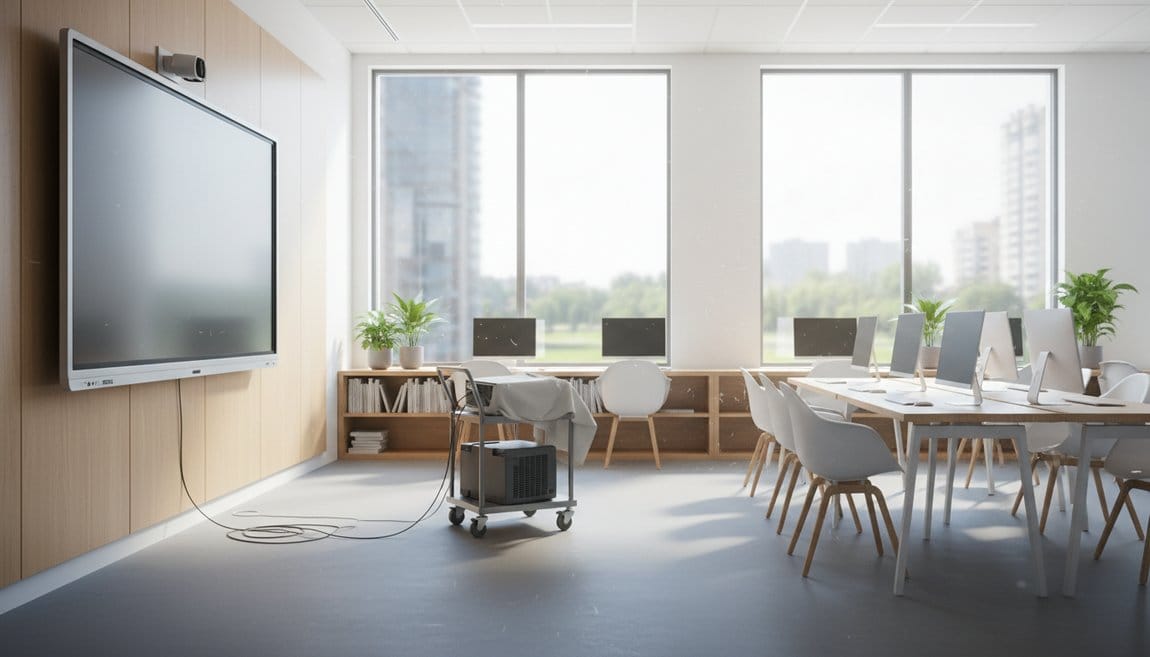
14 Jun How to Replace Projector with Interactive Whiteboard Guide
How to Replace Projector with Interactive Whiteboard: A Practical Upgrade Guide for K – 12 Classrooms
Estimated reading time: 17 minutes
Last Reviewed: June 11, 2026

By Luis Garcia, CIO
Luis Garcia is CIO at On-Site Technology, a Clifton, NJ-based MSP serving NJ, NY, PA, and FL since 2001. On-Site Technology is a Microsoft Certified Partner, Cisco Select Partner, VMware Partner, and Veeam Partner. Luis started as an IT field tech in 2001 and has spent over two decades working through every layer of the trade, including break/fix, network engineering, managed security, and CMMC compliance, which is why his advice leans specific over theoretical.
Replacing a projector with an interactive whiteboard means swapping aging, lamp-dependent projection systems for all-in-one interactive flat panels that deliver bright, touch-enabled instruction without calibration drift or shadow interference. At On-Site Technology, we support school technology rollouts where flat panels typically run $2,500 to $5,500 per room installed, with districts recovering that premium through eliminated lamp costs and reduced IT service hours within 4 to 6 years.
Key Takeaways
- Replacing projector-based SMART Board systems with interactive flat panels eliminates lamp degradation, parts scarcity, and mismatches with modern digital curriculum requirements.
- A room-by-room audit that captures display condition, infrastructure, and wall structure is the best insurance before procurement and installation.
- Interactive flat panels beat projector-based boards on total cost of ownership across a 7-to-10-year lifecycle once lamps, calibration, and downtime are accounted for.
- The “Pilot, Priority, Perimeter” rollout model lets you learn fast, protect high-impact classrooms, and then expand smoothly.
- Teacher training centered on four to five daily tasks, delivered by peer champions, produces far better adoption than vendor demos.
- Long-term reliability demands disciplined firmware updates, proper cleaning protocols, and upgradable compute modules that extend panel life.
Table of Contents
- 1. Understand Why Schools Are Replacing Projectors with Interactive Whiteboards
- 2. Audit Your Current Classrooms Before You Upgrade
- 3. Compare Your Options
- 4. Build Your Rollout Plan
- 5. Decommission and Install
- 6. Drive Teacher Adoption and Reliability
1. Understand Why Schools Are Replacing Projectors with Interactive Whiteboards
1.1 From Dim Projectors to Interactive Flat Panels: What’s Changing in Classrooms
The classroom projector replacement wave is real, and it has been building for years. K – 12 schools across the country are moving steadily away from aging projector-based systems toward bright, reliable interactive flat panels that hold up to daily use without the ritual of lamp swaps and alignment ceremonies. The trajectory from chalkboards to flat panels has accelerated as early SMART Board-style projector systems hit end of life and districts realize the spare parts pipeline has gone dry.
Definition
Interactive flat panel — An interactive flat panel is an all-in-one, large-format, touch-enabled LED display that integrates the projection surface, interactive whiteboard, computer display, and often audio into a single wall-mounted unit, eliminating the separate projector, mount, and board combination that defined the previous generation of classroom technology.
That distinction matters. The old model paired a dedicated projector (ceiling-mounted or ultra-short-throw) with a reactive whiteboard surface that needed calibration to stay in sync. The new model collapses all of that into one device. No projector. No alignment. No beam. Teachers can walk directly to the surface and interact with it the same way every time.
Hybrid and blended learning have pushed this upgrade cycle faster than anyone expected. Video-rich curriculum, synchronous remote students, and digital assessment tools all demand displays that stay visible with classroom lights on. Projectors fail that test after about 500 hours on a new lamp, and performance only declines from there. The upgrade from projector to interactive flat panel is less about chasing the newest gadget and more about keeping the primary teaching surface functional.
1.2 Pain Points of Legacy Projector-Based SMART Boards
I’ve walked into classrooms where the projector image was so dim the teacher had duct-taped black felt around the whiteboard to create a contrast border. That’s not an edge case. That’s what happens after 3,000 hours on a lamp that the district couldn’t budget to replace.
Projector lamps typically last 2,000 to 4,000 hours under normal use and cost $150 to $400 each to replace. In a classroom that runs six hours a day, 180 days a year, you’re looking at roughly one lamp per year per room. Multiply that across a 200-room district and you have a recurring line item of $30,000 to $80,000 annually before you factor in technician labor.
Beyond lamp cost, the maintenance load on legacy systems is relentless. Filters clog and need quarterly cleaning. Calibration drifts as the projector shifts in its mount, and every drift requires a technician visit or a teacher who knows the right key combination, which most don’t. SMART Board UF projectors specifically have reached a point where replacement parts are increasingly scarce, and districts are discovering that the trend away from these systems reflects both vendor support realities and operational fatigue.
Shadows are another daily frustration. The moment a teacher or student steps in front of a short-throw projector beam, they block part of the image. That interruption happens dozens of times per lesson. It’s minor each time and corrosive over a school year.
1.3 Reframing the Goal: From Device Swap to “Total Learning Surface” Redesign
Here’s the position most vendors won’t take: if you treat this project as a one-for-one hardware swap, you will miss the most important opportunity of the entire upgrade cycle.
The front wall of a classroom is a teaching instrument. When you pull down a projector and mount the new panel in the exact footprint of the old board and call it done, you have a brief window to rethink the whole surface: where the teacher stands, whether analog dry-erase boards flank the panel for overflow writing, how the document camera integrates, where the teacher’s device lives, and whether the height works for a third-grader in a wheelchair. Most districts skip that rethinking entirely. They mount the new panel in the exact footprint of the old board and call it done.
“Treat your panel not as a gadget upgrade, but as the new front wall of your classroom.”
The smarter approach is to inventory what teachers actually do at the front of the room and design around those workflows. Keep side dry-erase boards for brainstorming overflow. Mount the panel at a height that respects ADA reach ranges, which the Americans with Disabilities Act sets at a maximum of 48 inches for a high forward reach. Plan the “teaching cockpit”: panel, document camera, teacher device, and audio system all positioned so the teacher can move fluidly without turning their back on students. That 30 minutes of design thinking before installation will pay off for the next decade.
2. Audit Your Current Classrooms Before You Upgrade
2.1 Inventory Every Display and Connection Point
A classroom projector replacement that starts without a room-by-room audit almost always hits surprises in the field. Wall studs in the wrong place. No Ethernet drop within 20 feet of the panel location. A ceiling mount bolted directly to gypsum with no blocking. These are problems you want to find on paper, not after the installer has driven two hours from your central office.
Start by photographing the front of every room. A timestamped photo library takes about 20 minutes per building and gives you a reference point for every planning conversation. Document the display type in each room: ceiling-mounted projector with pull-down screen, ultra-short-throw SMART Board UF projector paired with an interactive surface, or any legacy interactive whiteboard that still depends on a separate projector and connected PC.
Record the model, approximate age, and visible condition of each unit. Flag rooms where you intend to retire SMART Board UF projector hardware as a first-wave priority. Note all source devices: teacher desktop, laptop dock, document camera, Apple TV or similar casting device. Every connection point you identify now is a connection point you can plan for in the new installation.
Also document audio. A surprising number of rooms have projectors with no usable speaker, relying on a separate system or nothing at all. That gap becomes relevant when you spec the new panel.
2.2 Identify Performance Gaps and Hidden Maintenance Costs
Once you have the inventory, layer in performance data. The question to answer for each room is: what is this system actually costing the district per year, in money and in instructional time?
Pull IT service tickets filtered by display-related issues over the past 24 months. Count lamp replacements, calibration visits, and projector-down incidents. A room that generates four service calls a year at 1.5 hours per call, priced at a $75 internal or $125 contracted technician rate, is spending $450 to $750 annually on reactive maintenance before you count the lamp itself.
Formula
Annual projector cost per room = (lamp cost × lamps per year) + (tech hourly rate × hours spent per year) + (estimated daily rate × teaching days lost to downtime)
Apply that formula to your highest-ticket rooms first. You will often find a small cluster of 20 to 30 rooms generating 60 to 70 percent of your display-related support volume. Those rooms belong in the first wave of your upgrade plan.
Visibility gaps matter too. Walk to the back row of each classroom and assess whether small text is readable with the lights on. If the answer is no, that room’s projector is failing its basic instructional purpose regardless of what the service record says.
2.3 Assess Infrastructure: Power, Network, Walls, and Safety
Infrastructure assessment is where projector-to-flat-panel upgrades most commonly blow their timelines, and it’s the piece most vendor sales conversations skip entirely.
Power is the first concern. Interactive flat panels typically draw 150 to 300 watts and need a dedicated circuit within a few feet of the mount location. Power strips and extension cords are not acceptable for permanent panel installations, both as a safety matter and because many district facilities standards explicitly prohibit them. If the nearest outlet is across the room, you need an electrician before the installer arrives. In older school buildings, that discovery can add two to four weeks to a room’s schedule.
Wall structure is equally important. A 75-inch or 86-inch interactive flat panel with its mount can weigh 150 to 250 pounds. Gypsum alone cannot support that load. You need either a stud layout that lines up with the mount’s bolt pattern or wood blocking installed between studs during a separate carpentry visit. Either way, that’s a task to identify during your audit, not during installation day.
Network drops affect both functionality and manageability. Ethernet-connected panels are significantly easier to manage remotely, push firmware updates to, and troubleshoot than Wi-Fi-only units. If a room has no Ethernet near the display wall, factor in a network run. In buildings with drop ceilings, this is usually a half-day task. In concrete block construction common in older schools, it can cost 4 to 8 hours of labor per room.
Finally, document any ceiling obstructions or safety compliance considerations. Panels must not block fire extinguisher access, emergency exit signage, or wall clocks. Removal of ceiling projector mounts requires following your district’s ladder and lift safety policy. Don’t assume installers are aware of those policies. Put them in the statement of work.
3. Compare Your Options: Interactive Flat Panel vs. Projector-Based Boards
3.1 Side-by-Side Comparison for K – 12 Use Cases
The following comparison highlights how each solution performs against the expectations of modern instruction.
For most districts making a classroom projector replacement decision, the flat panel wins on total cost of ownership once you account for a 7-year lifecycle. The upfront premium of $1,000 to $2,000 per room over a projector-based solution is typically recovered within 3 to 5 years through eliminated consumables and reduced service hours.
3.2 Core Features to Prioritize in a New Interactive Whiteboard
Size is not one-size-fits-all. A rough rule of thumb used in K – 12 AV planning is that viewing distance should not exceed 8 times the screen height. For a 75-inch panel (about 37 inches tall), that puts the comfortable maximum viewing distance at around 24 feet. Classrooms deeper than 28 feet should strongly consider an 86-inch panel. Most standard 30-by-30-foot classrooms work well with a 75-inch or 86-inch display.
Resolution at 4K is now the practical baseline. The visual difference matters most in STEM classrooms where fine detail in graphs, simulations, and annotated diagrams needs to be readable from the back row. Anti-glare coatings deserve equal weight with resolution specs, especially in rooms with south-facing windows.
Android-based panel compute modules vary significantly. Some panels run Android, some run Windows, and some offer a stripped-down proprietary environment. Security features including user profiles, PIN or SSO sign-in, and content filtering should be part of your evaluation criteria.
Connectivity planning should cover the teacher device first. USB-C with power delivery lets a teacher plug in one cable and have display, touch, charging, and audio all through that single connection. That matters for teachers who cycle between rooms or bring their own laptops. HDMI inputs, a USB-A hub, and a wireless casting receiver round out the typical requirement set.
Built-in operating systems vary significantly. Some panels run Android, some run Windows, and some offer a stripped-down proprietary environment. The right choice depends on your existing software ecosystem. If your district is deep in Google Workspace, an Android-based panel with native Chromebook casting support is often a better fit than a Windows-based compute module. Security features including user profiles, PIN or SSO sign-in, and content filtering should be part of your evaluation criteria.
3.3 Budgeting for Total Cost of Ownership, Not Just Purchase Price
The procurement conversation in most districts starts with purchase price and stops there. That’s the wrong frame for a device you’re planning to run for 7 to 10 years.
Interactive flat panels carry a rated panel lifespan of 30,000 to 50,000 hours, compared to projector lamps that need replacement every 2,000 to 4,000 hours. At six hours of daily use over a 180-day school year, a panel running for 10 years logs roughly 10,800 hours. A projector covering the same period needs 3 to 5 lamp replacements at $150 to $400 each.
A concrete scenario: a district with 150 classrooms that spends $250 per lamp with an average of one replacement per room per year accumulates $375,000 in lamp costs over 10 years, before technician time. Redirecting even a portion of that toward a flat panel refresh fund is a legitimate budget argument, not a sales pitch.
Energy consumption also shifts favorably. Most modern interactive flat panels draw 150 to 250 watts in active use. A comparable projector setup with panel plus projector plus PC can draw 400 to 600 watts. At average commercial electricity rates around $0.12 per kilowatt-hour, that’s a meaningful operating cost reduction across a large building.
Grants and funding cycles are worth aligning to. Title IV-A, ESSER funding (where still available), and state-level tech refresh grants often have specific eligibility windows tied to instructional technology. Districts that have already completed their audit and defined specifications are positioned to move quickly when those windows open.
4. Build Your Rollout Plan: The “Pilot, Priority, Perimeter” Model
4.1 Step 1: Pilot – Start Small and Learn Fast
The Pilot phase is 3 to 10 rooms, deliberately spread across different grade levels, subjects, and building types. The goal is not to showcase the technology. The goal is to break your assumptions before you’ve committed to 150 installations.
A typical pilot I’d recommend for a mid-sized district: two elementary classrooms (one early literacy, one math), two middle school classrooms (one science, one ELA), and one high school room with high video and collaboration demand. That spread will surface problems you wouldn’t predict: a grade band where the default panel height is wrong, a building where your Ethernet infrastructure is weaker than the audit suggested, a teacher population that needs a completely different training format than you planned.
Metrics to track during the pilot include teacher satisfaction scores from a short weekly survey, IT service tickets generated per panel per week, training hours consumed versus planned, and any installation variance from the site prep checklist. Collect those numbers for 6 to 8 weeks before you finalize your Priority-phase specifications.
The pilot also builds your first cohort of teacher champions, the people who will informally support colleagues as the rollout expands. That social capital is worth as much as the technical validation.
4.2 Step 2: Priority – Upgrade High-Impact Classrooms First
Priority-phase rooms are the ones where a failed projector causes the most instructional disruption: high-frequency-use math and science classrooms, special education rooms where visual clarity directly affects learning access, early literacy classrooms where shared text reading depends on a clear and bright display, and testing rooms where display reliability is non-negotiable.
Cross-reference your audit’s maintenance ticket data here. If you have 30 rooms generating 80 percent of your display-related service calls, those rooms belong in the Priority phase regardless of grade level. You’re not just improving instruction; you’re buying back IT hours.
Use the infrastructure insights from Section 2 to batch the work efficiently. Rooms in the same wing that share an electrical panel, a network closet, and a ceiling tile grid can often be staged in a single contractor visit. That batching can reduce per-room installation cost by 15 to 25 percent compared to scheduling rooms individually.
The Priority phase is also when you refine your installation standard: the exact mount height, the conduit routing, the network enrollment process, and the out-of-box configuration script. Getting those locked down at 30 rooms makes the Perimeter phase far smoother.
4.3 Step 3: Perimeter – Expand to Remaining Rooms and Shared Spaces
The Perimeter phase covers everything that wasn’t in the first two waves: libraries, multi-purpose rooms, art and music spaces, small-group intervention rooms, and elective classrooms. These spaces often have non-standard room geometry or shared-use patterns that require different mounting solutions, like mobile stands instead of fixed wall mounts.
Align Perimeter installations with school breaks. Summer is the obvious choice for large-scale work, but winter break and spring break can absorb 10 to 20 rooms with the right crew. PD days work for single-room installs if the prep has been done in advance.
Bundle ancillary work. Ceiling patching after projector removal, repainting, conduit runs, and network drops all cost less when scheduled together than when each is a separate contractor visit. A typical room that needs ceiling patching, a power circuit, and a network drop will cost 20 to 35 percent less if those tasks are scoped and scheduled as a package.
Communicate clearly and early with staff. Teachers who show up in August to find their room mid-installation, with no notice, are not going to be your technology champions in September. A simple email timeline sent at the start of summer, updated every two weeks, prevents that friction at nearly zero cost.
4.4 Detailed Site Preparation Checklist for Each Classroom
Use this checklist before any installer sets foot in a room:
- Confirm the panel size and mark the centerline and mount height on the wall. For ADA compliance, interactive elements should be reachable at 48 inches maximum forward reach height; plan panel placement accordingly.
- Verify stud locations and wall blocking capacity. Schedule a carpentry visit if backing is needed.
- Confirm a dedicated power circuit exists within 6 feet of the mount location. If not, schedule the electrician before the installer.
- Confirm an Ethernet drop within 10 feet of the panel location. If none, schedule the network run.
- Decide what stays and what goes on the front wall: existing dry-erase boards flanking the panel location can usually stay and serve as analog overflow surfaces. Chalkboards generally need to go. Legacy interactive whiteboard surfaces that are being replaced should be removed during the same visit.
- Photograph the room before any work starts and after installation is complete.
- Document any accessibility requirements specific to that room’s student population, including wheelchair user presence, visual impairments, or other factors that affect optimal panel height or orientation.
- Confirm ceiling projector removal and patch plan, including whether patch-and-paint is in scope for the installer or requires a separate facilities crew.
5. Safely Decommission Old Projectors and Install New Interactive Panels
5.1 Step-by-Step: Decommission Projector Interactive Board Systems
Safe removal starts before anyone picks up a screwdriver. Power down every component fully, including the projector, the interactive board controller, any connected PC, and the audio system. Confirm power is off at the device, not just via remote.
Disconnect cables in reverse order: audio first, then USB and data cables, then video, then power. Label cables as you remove them if there’s any chance a component is being relocated rather than retired. Then remove projector lamps carefully following the manufacturer’s handling instructions, lamps contain mercury and require proper disposal, not general trash. Bag each lamp separately and set it aside for your e-waste stream.
Ceiling projector removal requires ladders or lifts and must follow your district’s fall protection and ladder safety policy. Two-person crews are standard. One person on the lift handles the hardware; the other stabilizes, passes tools, and manages cables. Never rush this step. A dropped ceiling projector weighs 8 to 15 pounds and can cause serious injury.
Once the projector is down, remove the ceiling mount. Patch the ceiling penetrations with appropriate materials, typically joint compound and mesh tape for drywall ceilings, and schedule paint touch-up. Remove the legacy interactive whiteboard surface from the wall if it’s being replaced. In most cases, that means unscrewing a frame and pulling the panel away from the wall, a two-person job for large boards.
Before any retired device leaves the room, wipe any connected PC or on-board storage. That includes hard drives in connected desktops, USB drives, and any network-shared storage the classroom computer accessed. Update your asset management system to mark each device as decommissioned.
5.2 Responsible Recycling, Reuse, and Donation
Projectors, interactive whiteboards, and the computers attached to them are electronic waste and need to be handled accordingly. Projector lamps specifically contain mercury vapor and are regulated in most states. Do not consolidate them with general electronics recycling. Use a certified e-waste recycler that explicitly accepts lamp-based projectors and can document proper disposal.
For hardware that still functions, donation is worth considering before you call the recycler. A SMART Board UF projector that’s too dim for a classroom might still work acceptably in a storage room used for staff presentations, a community center, or a faith-based organization. Check your district’s surplus property policy before donating. Many districts require formal disposition approval and documentation.
One rule with no exceptions: no student data on donated hardware. Before any device leaves the district’s control, wipe the storage. For Windows machines, use DBAN or equivalent. For Android-based panels, do a factory reset with encryption enabled before the reset. Document the wipe in your asset management system.
5.3 Mounting and Configuring Interactive Flat Panels
Wall mounts are the right choice for permanent classroom installations. For elementary grades, the typical recommended mount height places the bottom edge of the panel at 28 to 32 inches from the floor, allowing young students to reach the lower portion of the screen. Secondary classrooms typically mount 4 to 8 inches higher, but verify against your ADA reach-range calculations for each room.
Mobile stands suit shared spaces, intervention rooms, and any room where you need flexibility. Lock the casters before any student interaction and run cables in a management sleeve to prevent tripping hazards. Panels on mobile stands should have the same network enrollment as wall-mounted units; don’t let them become a support blind spot.
Cable management is not optional. A 15-foot power cord and HDMI cable hanging freely from a panel to an outlet is both a trip hazard and an invitation for students to pull on things. Conduit, raceway, or in-wall runs are the right solution. At minimum, use cable channels attached to the wall.
For configuration, connect the panel to the network via Ethernet and enroll it in your device management platform before the teacher uses it. Push the standard configuration profile: district Wi-Fi credentials, approved app set, screen timeout policy, and remote monitoring agent. Validate touch accuracy in all four corners of the screen and test every input mode the room will actually use, HDMI from teacher laptop, USB-C, and wireless casting. Hand off a room only after every input mode passes.
6. Drive Teacher Adoption and Long-Term Reliability
6.1 Practical Teacher Training That Sticks
Here’s a contrarian position based on running these rollouts for school districts: vendor-led training sessions almost always fail to produce real adoption. The demos are impressive, the feature count is overwhelming, and by the time the teacher is alone in the room the next morning, they remember approximately two things from the session.
What actually works is short, task-specific training built around real lesson materials. Forty-five minutes on exactly four skills: opening the whiteboard app, annotating a slide deck, launching a browser to a bookmarked resource, and saving the session for a student to access later. That’s it. Teachers who master those four tasks will use the board every day. Teachers who sit through a 90-minute feature showcase will default to using it as a very expensive TV.
Run separate tracks for beginners and advanced users. The teacher who has been using a SMART Board for 12 years needs a bridge session that explicitly maps her existing workflows to the new interface. She does not need to relearn what an interactive board is. The teacher who’s been running her classroom off a 2015 laptop and a projector with no touch features needs a longer foundational session. Same technology, very different starting points.
Peer champions matter more than IT staff for sustained adoption. Identify two or three teachers per building who are genuinely enthusiastic after the pilot phase and give them structured time to support colleagues. That might mean a 30-minute office hour once a week or a presence in the staff lounge during prep periods. No formal IT budget required.
6.2 Integrating Interactive Boards into Curriculum and Assessment
Interactive flat panels change what formative assessment can look like in real time. Teachers can push a quick poll to student devices, display the aggregate results on the board, and immediately pivot instruction based on what they see. That feedback loop used to require a separate clicker system or a specialized app. Most modern panels include it natively or integrate with tools already in the district’s software stack.
Small-group work at the board, station rotations where students bring a tablet to the panel and push content up, and shared annotation during Socratic seminars are all instructional moves that flat panels support better than projector-based systems. The key is that teachers need to see these moves modeled in context, not described in a slide deck. Build your training content around video clips of actual classroom use, not vendor marketing footage.
For special education specifically, interactive flat panels offer meaningful accessibility gains. High-contrast display options, adjustable font sizes, text-to-speech integration, and the ability to zoom in on content without losing resolution all benefit students with visual processing differences or learning disabilities. Those benefits disappear if the panel is mounted at a height a wheelchair user can’t reach, which is another reason the site prep checklist in Section 4.4 is not optional.
6.3 Maintenance, Support, and Future-Proofing Your Investment
A cleaning protocol sounds trivial until you’ve seen a screen abraded by a teacher who used a dry-erase marker directly on the glass and then tried to wipe it off with a paper towel. Establish a written cleaning procedure, distribute the correct microfiber cloths and approved cleaning solution to every classroom, and put the protocol in the onboarding packet for new teachers.
Firmware updates deserve a managed schedule, not an ad hoc approach. Most interactive flat panel manufacturers release firmware quarterly. Push updates over your MDM platform during a scheduled maintenance window, not mid-school-day. A panel that reboots during a lesson because auto-update kicked in is a support call and a teacher relations problem. Controlling the update schedule costs you nothing.
For future-proofing, the most valuable spec to prioritize at purchase is an upgradable compute module slot, sometimes called an OPS slot. These allow you to replace the panel’s internal computer mid-lifecycle without replacing the screen itself. A 75-inch screen that still has excellent optics and touch performance at year 6 but runs an outdated OS can be refreshed with a new compute module for $300 to $600 instead of a full panel replacement at $3,000 to $5,000. That modularity can extend your effective refresh cycle by two to four years.
Standardize on as few models as possible across your district. Two models max, one for standard classrooms and one for shared spaces, means your team learns the quirks of two hardware platforms instead of eight. Spare parts, service procedures, and teacher training all simplify accordingly.
Frequently Asked Questions
How long does it take to replace a ceiling projector classroom with an interactive flat panel?
Once site preparation is complete, a standard classroom installation typically runs 3 to 5 hours. That covers mounting the panel, routing and connecting cables, enrolling the device in your management platform, and validating all input modes. Where timelines stretch is in the prep work: patching ceilings after projector removal, adding power circuits, or running new network drops can each add days to a room’s schedule. Plan for an average of 1 to 2 days per room when you factor in prep, installation, and testing for rooms that need infrastructure work.
Can we reuse our existing interactive whiteboard with a new flat panel?
In most cases, legacy interactive whiteboard surfaces are removed when you replace projector with interactive whiteboard, because the new flat panel takes over that function entirely. However, if the existing board is a plain dry-erase surface without electronics, keeping it flanking the new panel is often the right call. That analog overflow space is genuinely useful during group brainstorming, student-led problem solving, and lessons where the teacher wants to separate permanent reference content from active working space. What you should not do is leave a legacy electronic whiteboard surface in place expecting it to interoperate with the new panel. It won’t, and it will confuse teachers.
Is it cheaper to keep replacing projector lamps instead of upgrading?
Only in the shortest possible time horizon. Over a 7-year lifecycle, the math turns decisively in favor of the upgrade from projector to interactive flat panel. If your per-room annual lamp-plus-maintenance cost runs $500 to $1,000 (a reasonable estimate for rooms with one lamp replacement and two service visits per year), you’re spending $3,500 to $7,000 over seven years per room in operating costs alone. An interactive flat panel priced at $3,000 to $4,500 installed, with near-zero consumable costs, typically reaches cost parity within 4 to 6 years and then runs cost-positive for the remainder of its life.
What size interactive flat panel is best for my classroom?
Match panel size to room depth using the 8x viewing distance guideline: the maximum comfortable viewing distance should not exceed 8 times the screen’s active height. A 75-inch panel (approximately 37 inches tall) works well in rooms up to 24 to 25 feet deep. For classrooms with 30-plus feet of seating depth, move to an 86-inch panel. Most standard elementary and secondary classrooms fall into the 75-inch or 86-inch range. Don’t size down to save $400 per room and then wonder why back-row students can’t read the board.
How do we handle decommissioning and recycling old SMART Board UF projectors?
Safe decommissioning follows this sequence: power down and disconnect all components, remove the projector lamp following manufacturer handling guidance and bag it separately for hazardous waste disposal, remove the ceiling mount using a two-person crew with proper fall protection, patch ceiling penetrations, and wipe any connected storage devices before the hardware leaves the building. For disposal, use a certified e-waste recycler that explicitly handles mercury-containing lamps. Before donating any retired SMART Board UF projector hardware to outside organizations, confirm a factory reset or full drive wipe has been completed and document it in your asset records.
Need Help With Audio-Visual & Classroom Technology?
On-Site Technology designs and installs interactive whiteboard solutions that keep classrooms connected, compliant, and ready for digital instruction across NJ and NYC.
Learn More About Interactive Whiteboard Services & Installation NJ & NYC